Application request
An application asks to print, play, record, display, or connect.

Clear guides to device drivers, compatibility, and troubleshooting. Learn how to identify hardware, check official update options, and understand recovery steps before making changes.
What a driver does
A device driver is software that helps an operating system use a particular piece of hardware. It can help Windows send a print job to a printer, use a wireless adapter, play sound through an audio interface, or set a display mode supported by a graphics processor.
That does not mean a driver is the answer to every device symptom. A printer can be offline because of its network connection, and sound can be routed to the wrong output even when the installed driver is appropriate. Identifying the affected device and the exact task that fails gives you a stronger starting point.
An application asks to print, play, record, display, or connect.
Windows coordinates the request and the device capability it needs.
The driver exchanges the supported instructions with the device.
The device performs the operation and returns information where applicable.
This is a simplified model, not an exact description of every device architecture. Real systems can also involve firmware, connections, services, and application settings.
The same general relationship appears in printers, audio equipment, graphics hardware, networking, and input devices: an application requests a task, Windows coordinates it, and a supported device responds. The useful next check changes with the device and symptom.
Choose a focused path

Updating a driver means replacing the software Windows uses to communicate with one identified device. It can be useful when official release notes address a problem you can reproduce, add support you need, or correct a compatibility issue. A newer version number alone does not establish that a working device needs changing.
Before an update, identify the exact device, Windows version, and system architecture. For integrated laptop hardware, the computer maker’s support page is often the appropriate starting point; for a confirmed add-in component, its manufacturer may publish the relevant package. Keep the current version details and change one thing at a time so the result is understandable.
Related guides
Use Windows 11’s system information and Device Manager to record the exact device Windows sees and the driver that is installed before seeking an update.
Select a driver by the exact device, computer design, Windows release, and official source—not by a component family name or a claim that it is newest.
Install one already-verified driver package with a recovery plan, using the manufacturer’s documented installer or its documented INF folder.
Verify the task that prompted a driver update, then use the narrowest supported recovery path if that task gets worse or does not improve.
Check the Windows 11 release, edition, and System type before deciding whether an official driver package is applicable.
Use official distribution channels and Windows signature information as checks on a driver package’s origin and integrity, without mistaking them for a compatibility guarantee.
A controlled way to record what happened after a Windows 11 driver update, test the affected function, and choose a proportionate recovery action.
Prepare access, package, backup, and recovery information before changing a driver that could affect control of the PC, connectivity, display, or storage.
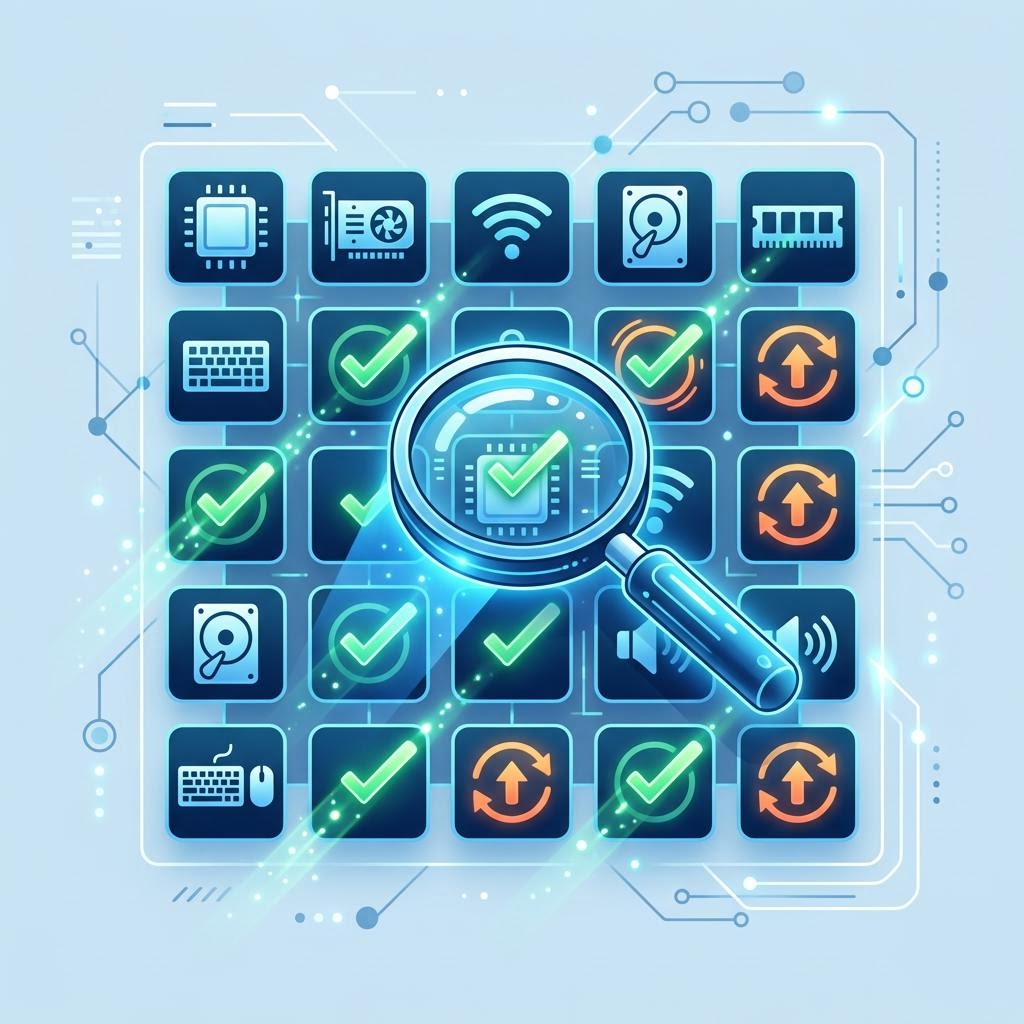
Driver updater software compares installed driver information with the catalogue it has available and may propose replacements. A recommendation can be a prompt to investigate, but it is not a diagnosis: the tool cannot fully know a computer’s model-specific validation, attached equipment, firmware level, or the reason a particular version was selected.
Windows Update and the original PC or device manufacturer are useful places to verify a proposed change. If a tool identifies a version as older, compare the device model and release notes with the official source before acting. A stable device may have no reason to change, while a specific issue may justify a focused update.
Related guides
How to use Windows Update, Device Manager, and a manufacturer support page as distinct tools rather than interchangeable update buttons.
Questions that help separate a specific, verifiable driver recommendation from a broad software marketing alert.
Why an alert about an older driver is a prompt to investigate, not a finding that a PC is broken or unsafe.
How to save a specific official Windows 11 driver package and its identifying details before a network or essential-device recovery is needed.
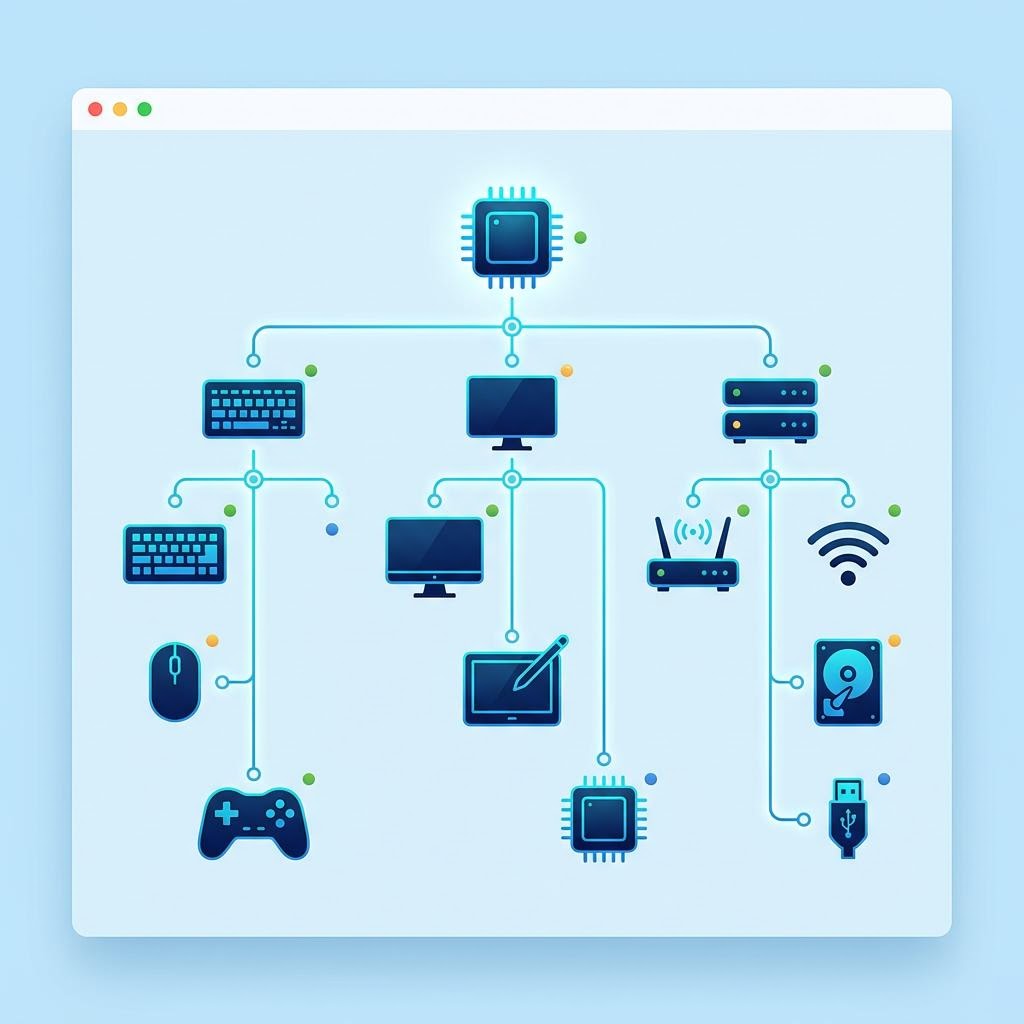
Device Manager is a Windows tool for viewing recognized hardware and inspecting device status, driver details, and identifiers. It is useful for gathering evidence: a category, device name, status message, provider, version, and hardware ID can make a support page or a troubleshooting step more precise.
A warning icon or unfamiliar entry is a clue rather than a complete diagnosis. A device may be listed yet still have a cable, power, selected-output, application, or hardware problem. Read the full status before selecting Update, Disable, Uninstall, or Roll Back, particularly for display, network, storage, and input devices.
Related guides
Open Device Manager in Windows 11, navigate its category tree, and identify the entry that deserves closer inspection.
Use Device Manager Properties to capture the facts needed to investigate a specific Windows device safely.
Read Device Manager warning information, distinguish an unknown device from a known symptom, and choose a safe next action.
Match a Windows 11 driver action to the evidence, then test the result and retain a recovery path.
Category guides
Start with the kind of device and learn how to distinguish a likely software question from a connection, settings, or hardware question.
A practical Windows 11 guide to motherboard, chipset, storage, network, USB, and platform driver troubleshooting.
A practical Windows 11 guide to diagnosing and updating the model-specific drivers, firmware-adjacent software, and settings that make laptop hardware work.
A practical Windows 11 guide to printer queues, ports, drivers, network discovery, scanning, and evidence-led troubleshooting.
A practical Windows 11 guide to diagnosing speakers, microphones, USB interfaces, HDMI audio, Bluetooth headsets, and the driver layer between them.
How Windows 11 graphics drivers, displays, renderers, and recovery choices fit together.
Educational articles
Explainer
A plain-language explanation of the software layer that lets an operating system use a particular hardware device, including what a driver can and cannot explain.
Read articleExplainer
Drivers, firmware, and applications can all affect a device experience, but they run in different places and solve different problems.
Read articleExplainer
A driver update is most useful when evidence connects an identified device and a documented change to a specific, reproducible problem.
Read articleExplainer
Version numbers do not establish compatibility: the best choice depends on the exact device, operating system, manufacturer validation, and problem being addressed.
Read articleCommon questions
No. A driver update is most useful when it addresses a documented need, such as a supported compatibility issue or a reproducible problem. Windows Update and model-specific manufacturer guidance are a practical routine for many systems.
No. It means Windows has status information to read. Open the device’s Properties, record the full message and code, and consider the device, connection, and timing before choosing an action.
No. A cable, port, power source, network, selected audio output, application permission, firmware, or the hardware itself can cause a similar symptom. Start with the simplest check that fits what you observe.
Keep the matching official installer available locally and make sure you can still connect or control the computer if the change does not work as expected. Record the current version and test one change at a time.
Transparency
This preview provides educational navigation and written guidance about device drivers, compatibility, and troubleshooting. It does not scan devices, host driver downloads, or provide a repair service.
Verified information about the site operator and funding has not been supplied for this preview. This page therefore makes no claim about ownership, advertising relationships, or funding arrangements. Technical guidance should be checked against the relevant device or computer manufacturer’s current documentation.